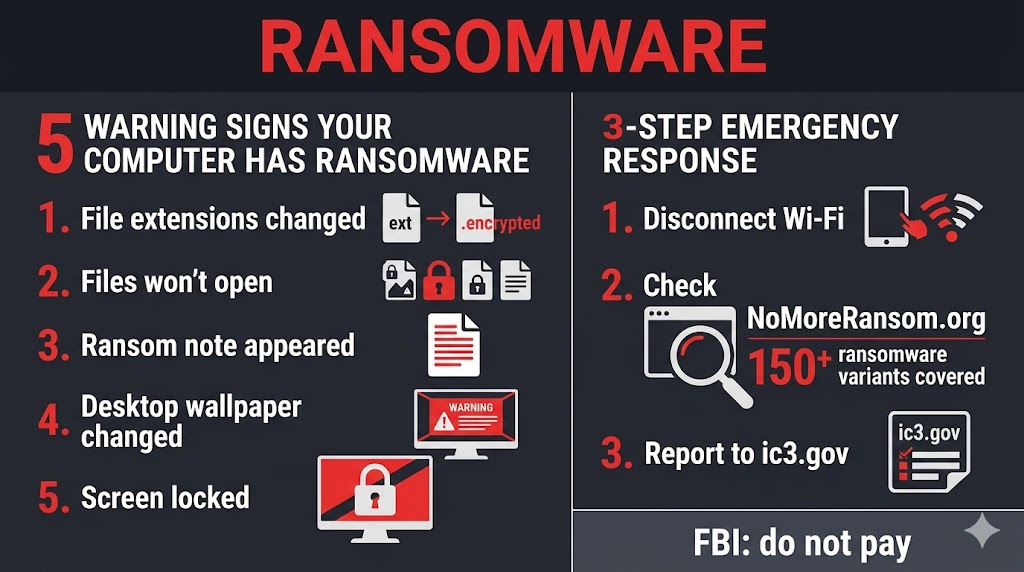
Ransomware is malware that encrypts your files and demands a cryptocurrency payment — typically Bitcoin — before the attacker provides a decryption key. It arrives most often through phishing and malicious emails. The FBI advises against paying. Check NoMoreRansom.org for free decryption tools before doing anything else. Disconnect from Wi-Fi immediately if you suspect infection.
Ransomware has become one of the most disruptive and destructive forms of malware targeting US homes, small businesses, hospitals, and schools. The FBI’s 2025 Internet Crime Complaint Center (IC3) Annual Report documented $20.9 billion in total cybercrime losses — with ransomware ranked as the top cyber threat to US healthcare and critical infrastructure in 2025. This article explains exactly how ransomware works, how to recognize it, what to do if it hits you, and how to stop it from ever getting that far.
Table of Contents
What Is Ransomware?
Ransomware is a category of malware that encrypts your files — making them unreadable — then demands a payment, usually in Bitcoin, in exchange for the decryption key that restores access. Your files are not deleted. They still exist on your drive. You simply cannot open them without the key, which only the attacker holds.
This distinguishes ransomware from other types of malware. A trojan steals data silently. A virus self-replicates by attaching to other files. Spyware monitors your activity without your knowledge. Ransomware does something none of these do: it holds your own data hostage and announces itself, because the attack only generates money if you know it happened.
Ransomware is malware that encrypts your files and demands payment — typically in Bitcoin — before the attacker provides a decryption key. Without that key, decryption is mathematically impossible in most cases. That is the mechanism that makes ransomware so effective: the encryption itself is not a flaw. It is the same strong encryption used to protect online banking.
How Does a Ransomware Attack Work?
Every ransomware infection follows the same three-stage chain: the attacker gets ransomware onto your device, the ransomware encrypts your files, and then the ransom demand appears. Each stage is worth understanding — because two of them are invisible until the third arrives.
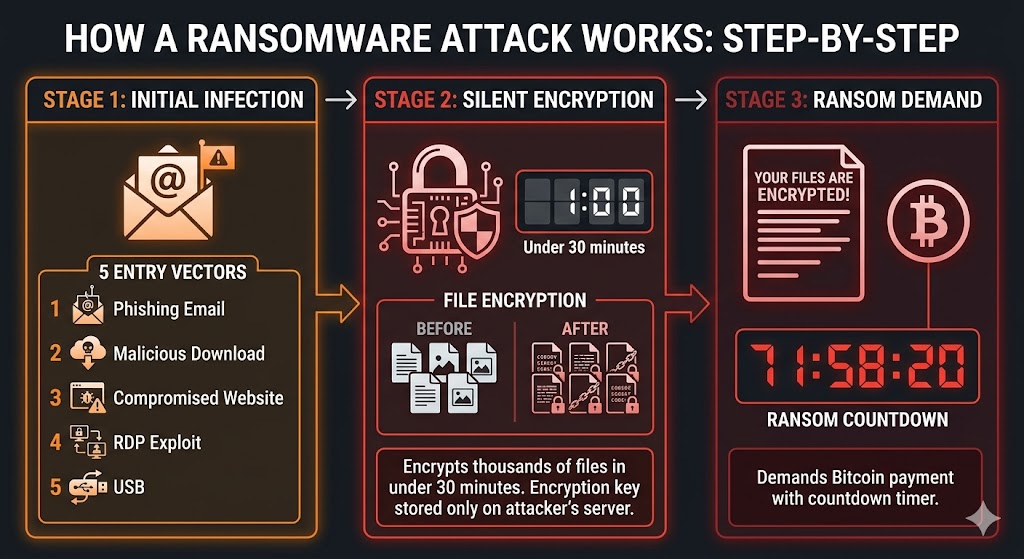
That invisible middle stage — silent encryption completing in under 30 minutes — is why ransomware causes more damage per incident than almost any other form of malware. By the time you see Stage 3, the window for prevention has closed.
Stage 1 — The Initial Infection
Ransomware reaches your device through five primary vectors: phishing email attachments, malicious downloads, compromised websites, Remote Desktop Protocol (RDP) exploits, and infected USB drives. Each vector is broken down in detail in the entry-points section below.
Phishing and malicious emails together account for approximately 37% of ransomware infections, making email one of the most common delivery channels for ransomware (Sophos State of Ransomware 2025). The emails are designed to look legitimate — a fake invoice, a shipping notification, a voicemail attachment — and a single click is all it takes.
Stage 2 — The Silent Encryption
Once ransomware installs, it connects to the attacker’s remote server and receives a unique encryption key. It then begins scanning your drive systematically — documents, photos, spreadsheets, databases, and backups — and encrypting each file. The originals are overwritten. You end up with thousands of files that look like they exist but cannot be opened.
Most ransomware encrypts thousands of files in under 30 minutes — the process completes silently before most users notice anything is wrong. The encryption key is never stored on your device. It exists only on the attacker’s server, which is why there is no technical workaround to crack it yourself. The math does not permit it.
Stage 3 — The Ransom Demand
When encryption is complete, the ransomware announces itself. The ransom demand typically appears as a full-screen lockout message, a changed desktop wallpaper, or text files dropped into every folder (named README.txt, DECRYPT_FILES.txt, or similar). The note specifies a cryptocurrency payment amount, provides a Bitcoin wallet address, and sets a countdown timer — threatening to raise the price or permanently delete the decryption key if you do not pay within 48 to 72 hours.
The median ransom payment across all victims reached $115,000 in 2024 data, according to the Verizon Data Breach Investigations Report 2025. Business-targeted attacks demand far more — ransoms against hospitals and municipalities have exceeded $1 million. Consumer-targeted attacks typically demand less, though the FBI advises against paying at any amount.
Types of Ransomware You Need to Know
Four main types of ransomware exist — plus one widespread impostor, scareware — and they behave in meaningfully different ways. Knowing the type helps you diagnose what you are dealing with — and respond correctly.
Crypto Ransomware
Crypto ransomware is the most common and most damaging type. It encrypts your files but leaves the operating system accessible — you can still use your computer, open a browser, and search for help. Your documents, photos, and videos are simply locked behind unbreakable encryption. Restoring access requires either the attacker’s decryption key or a clean backup made before the infection.
Locker Ransomware
Locker ransomware locks the entire device. You cannot access the desktop, open any application, or do anything beyond reading the ransom message on screen. It frequently impersonates law enforcement — displaying a fake FBI or Department of Justice warning claiming your computer was locked for viewing illegal content and demanding a “fine” to unlock it. This is not a real law enforcement action. No US government agency locks your computer and demands payment.
Ransomware-as-a-Service (RaaS)
Ransomware-as-a-Service means criminal developers sell or rent ready-made ransomware toolkits to other criminals who lack technical skills. The developer takes a percentage of every ransom payment; the “affiliate” handles the targeting and distribution. The FBI IC3 2025 Annual Report recorded 3,611 ransomware complaints — up from 3,156 in 2024 and 2,385 in 2022 — and RaaS proliferation is the primary driver of that sustained growth. Groups like LockBit, BlackCat, and REvil operated as RaaS businesses before law enforcement disruptions in 2024 and 2025.
Double Extortion Ransomware
Double extortion ransomware adds a second threat on top of file encryption. Before encrypting your files, it copies them to the attacker’s server. After the encryption, the attacker threatens to publish or sell your stolen data — client records, tax documents, medical files, private photos — unless you pay. This matters because restoring your files from a clean backup no longer ends the threat. The data is already in the attacker’s hands. Double extortion is now the dominant technique in attacks on businesses, healthcare providers, and any organization holding sensitive client information.
Scareware — The Fake Ransomware That Fools Millions
Scareware is not ransomware. It is a browser popup — often styled to look like a Windows system alert or a Microsoft Security warning — designed to panic you into calling a fake tech support number or paying a fake fine. Your files are not encrypted. Your computer is not locked.
The 10-second diagnostic: can you still open your files? Open File Explorer and try to open a document or photo. You are almost certainly dealing with a scareware popup if your files open normally and none of the ransomware signs below are present. Close the browser tab. Open Task Manager (Ctrl + Shift + Esc) and end the browser process if that does not work. Nothing was installed, nothing was encrypted, and no payment is needed.
Knowing the type helps you diagnose — but next you need to recognize the specific symptoms on your own screen.
How Ransomware Gets Onto Your Device
Most consumer ransomware infections are opportunistic, not targeted. Attackers send millions of phishing emails or run automated scans looking for vulnerable devices — they are not sitting at a keyboard specifically targeting your laptop. This matters because it means basic precautions stop the majority of infections before they start.
The five main entry points for home users:
- Phishing email attachments — malicious files disguised as invoices, shipping notifications, or HR documents
- Phishing email links — URLs that redirect to download pages or exploit kits
- Malicious downloads — pirated software, fake Adobe Flash updates, cracked games from unofficial sites
- Drive-by downloads — compromised websites that install ransomware through unpatched browser or plugin vulnerabilities, without any click required
- Unpatched software vulnerabilities — outdated Windows, Office, or browser versions with known security holes that ransomware actively scans for
Exploited software vulnerabilities are the single most common technical root cause of ransomware infections, accounting for 32% of attacks — for the third year running — according to the Sophos State of Ransomware 2025 report. Running automatic Windows updates closes most of these doors permanently.
Knowing how ransomware arrives helps with prevention — but first, learn how to confirm whether what is on your screen is real ransomware or a harmless scam popup.
5 Signs Your Computer Has Ransomware — Not a Scam Popup
Real ransomware leaves specific, unmistakable evidence. Treat two or more of these signs as a confirmed infection and move to the response section immediately.
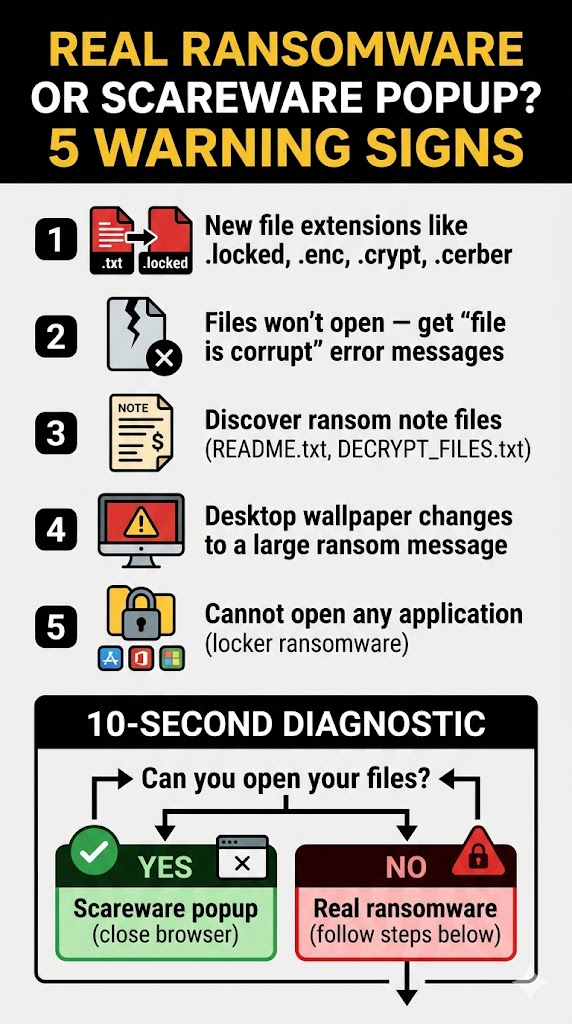
Scareware accounts for the majority of what home users encounter — the quick file-open test eliminates panic before it drives a bad decision. Real ransomware leaves all five of these markers; scareware leaves none of them.
Your files have new, unfamiliar extensions. Documents that were previously named report.docx or photo.jpg now show names like report.docx.locked, photo.jpg.enc, or photo.jpg.crypt. Extensions like .zepto, .moop, .zeus, and .cerber are also ransomware markers. The file names change; the icons often go blank.
Your files will not open. You double-click a document and receive a “file is corrupt” or “cannot open file” error. The file is not corrupt — it has been encrypted and is unreadable without the decryption key.
A ransom note file has appeared on your desktop or in your folders. Look for files named README.txt, DECRYPT_FILES.txt, HOW_TO_DECRYPT.txt, or similar. These are dropped by the ransomware into every folder it touched.
Your desktop wallpaper has changed to a ransom message. Many ransomware variants replace your background with a full-color notice displaying payment instructions and a countdown timer.
You cannot open any application and your screen shows a lock message. This is locker ransomware — the entire operating system is inaccessible, and only the ransom notice is visible.
You are almost certainly dealing with a scareware popup if your files open normally and none of these signs are present. Close the browser. You are not infected.
The next section is your step-by-step response plan if these signs match what you are seeing right now.
Can Ransomware Spread Through Wi-Fi to Other Devices?
Yes — certain types of ransomware can spread across a local network, including your home Wi-Fi, and infect other connected devices without any action on your part.
Not all ransomware spreads this way. Most consumer ransomware stays contained to the originally infected device. However, worm-capable ransomware — the most dangerous category — actively scans the local network for other vulnerable machines and copies itself to them automatically. WannaCry, one of the most disruptive ransomware attacks ever recorded, infected over 200,000 devices across 150 countries within days of its May 2017 release by spreading automatically across local networks without any user action.
On a home network, the risk hierarchy looks like this: Windows PCs on the same network face the highest risk. Network-attached storage (NAS) drives are frequently targeted because they hold backups. Smart TVs, gaming consoles, and iPhones face a much lower risk — but ransomware with worm capabilities has reached IoT devices in documented cases.
Disconnecting from Wi-Fi is the single most important step you can take to prevent spread if you suspect your computer is infected. Pull the ethernet cable. Turn off Wi-Fi on the infected machine. Do this before anything else.
What Should You Do If Your Files Are Locked Right Now?
Stay calm. The encryption is already done — panicking will not reverse it. Follow these six steps in order.
Do not turn off your computer. Powering down mid-encryption can corrupt files beyond recovery and may destroy evidence needed to identify the ransomware variant. Leave it running.
Disconnect from Wi-Fi and unplug the ethernet cable immediately. This stops network spread to other devices on your home network. On Windows: click the Wi-Fi icon in the taskbar and select Disconnect. On Mac: click the Wi-Fi icon and turn Wi-Fi off.
Unplug all external drives and USB devices. External hard drives, USB sticks, and even connected phones can be encrypted if they are attached when the ransomware is active. Disconnect them now.
Photograph the ransom note with your phone. You will need the exact ransomware name, the wallet address, and the ransom amount when you report to the FBI and search for decryption tools. Screenshot it if you can — photograph the screen if you cannot.
Go to NoMoreRansom.org before considering payment. This is the most important step most victims skip. Search the ransomware name or upload an encrypted file — the site will tell you if a free decryption key exists for your variant. Over 150 variants are covered.
Report to the FBI’s Internet Crime Complaint Center at ic3.gov. Filing a report takes five minutes and costs nothing. It helps law enforcement track active campaigns and has directly contributed to ransomware gang takedowns. You will not get in trouble for reporting.
Cloud sync warning: Encrypted versions of your files may have already overwritten your clean cloud backups if Google Drive or OneDrive desktop sync was running when ransomware struck — check your cloud provider’s version history within the first 30 minutes. Google Drive and OneDrive both retain previous versions of files for 30 days on standard plans. Log in via browser (not the desktop app) and restore from version history before the window closes.
Once you have stabilized the situation, the payment decision is the next thing to consider — and the FBI has a clear stance on it.
Should You Pay the Ransom?
The FBI advises against paying. Paying does not guarantee you will recover your files, may mark you as a willing target for repeat attacks, and directly funds future ransomware campaigns. By 2024, 64% of ransomware victim organizations refused to pay — up from 50% in 2022 — as defenses improved and legal pressure increased (Verizon DBIR 2025).
The FBI’s Official Stance
The FBI formally and publicly advises ransomware victims not to pay. Their reasoning is practical: payment emboldens attackers, funds criminal infrastructure, and provides no contractual guarantee that you will receive a working decryption key. Some ransomware variants deliver broken keys. Others deliver no key at all. The FBI’s IC3 2025 Annual Report documented $20.9 billion in total cybercrime losses and identified healthcare as the single most targeted sector for ransomware, with 460 attacks recorded against US health organizations in 2025 alone. Report your incident at ic3.gov — the FBI uses these reports to track active campaigns and coordinate takedowns.
Free Decryption Resources — Try These Before Paying
NoMoreRansom.org is a free public resource maintained by Europol, the Dutch National Police, and dozens of cybersecurity firms. It hosts decryption tools for over 150 ransomware variants. NoMoreRansom.org has helped over 1.5 million ransomware victims recover their files for free since its 2016 launch, using decryption tools developed by Europol, the Dutch National Police, and leading cybersecurity firms including Kaspersky and McAfee.
To use it: identify your ransomware variant from the ransom note (the name is usually prominently displayed — LockBit, WannaCry, Dharma, etc.). Enter the name in the search tool at nomoreransom.org/en/decryption-tools.html. A free decryption tool exists for over 150 variants — download and run it before considering payment. Bookmark the page regardless, because new tools are added regularly as law enforcement recovers keys from dismantled gangs.
The best response to ransomware is prevention — and prevention is simpler than most people think.
How to Prevent Ransomware — 6 Steps Anyone Can Take
Prevention stops ransomware before the encryption ever starts. These six steps require no technical expertise and no paid software beyond what most people already have.
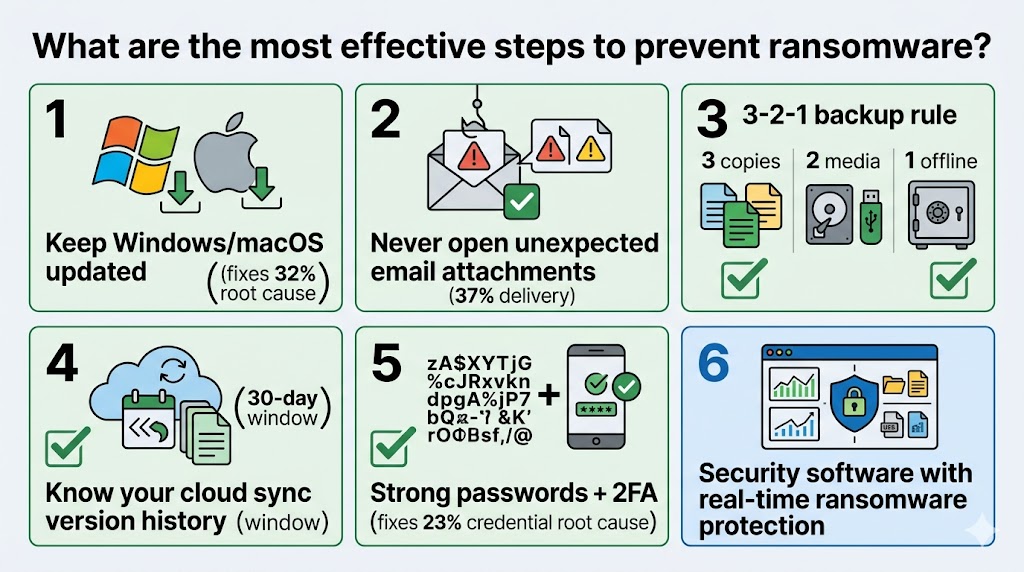
Of these six ransomware prevention steps, Step 1 carries the highest single-step ROI: patching software closes the vulnerability window that attackers rely on in nearly one in three ransomware incidents.
Keep Windows and macOS fully updated. Exploited software vulnerabilities are the top technical root cause of ransomware — accounting for 32% of incidents (Sophos State of Ransomware 2025). Enable automatic updates and install them immediately when they appear.
Never open email attachments from senders you do not recognize. Email is one of the most common ransomware delivery channels. Do not open unexpected email attachments without verifying the sender through a separate channel — even attachments claiming to be invoices, job offers, or package notifications.
Follow the 3-2-1 backup rule. Keep 3 copies of your important files, on 2 different types of storage media, with 1 copy stored completely offline (disconnected from your computer and your network). An offline backup is immune to ransomware — it cannot encrypt a drive it cannot reach.
Understand your cloud sync settings. Auto-sync is convenient but dangerous during an active ransomware infection. Know how to access your cloud provider’s version history. Enable it if it is not already on. Consider keeping one backup on an external drive you connect manually rather than continuously.
Use strong, unique passwords and enable two-factor authentication. Compromised credentials are the second-most-common ransomware entry point, accounting for 23% of incidents (Sophos State of Ransomware 2025). A unique password for every account and two-factor authentication on your email and remote access tools closes this attack surface significantly.
Use dedicated security software with ransomware protection. Modern security tools monitor file-system behavior in real time and block ransomware before it encrypts a single file — this is a different layer of protection from basic antivirus scanning.
Knowing how to prevent ransomware matters — but understanding who is most at risk in the US right now helps put the threat in full context.
Who Is Most at Risk in the United States?
Ransomware targets every sector of US society, but the risk is not evenly distributed.
The FBI’s IC3 2025 Annual Report identified healthcare as the single most targeted sector for ransomware in the United States, with 460 attacks recorded against hospitals and health organizations — many resulting in delayed patient care, diverted ambulances, and exposed medical records. When a hospital’s systems go offline, the consequences are not just financial. Surgeries are postponed. Emergency departments divert patients. Electronic health records become inaccessible for days.
K–12 school districts are the second most frequently targeted public sector. Ransomware gangs target under-funded school IT departments because they hold large volumes of student personal data — grades, health records, social security numbers — and typically lack the resources to defend against sophisticated attacks. Parents should know that their children’s records are at risk, not just the district’s administrative systems.
Small businesses face disproportionate ransomware exposure. Ransomware was present in 88% of SMB data breaches in 2025, compared to just 39% of large organization breaches, according to the Verizon 2025 DBIR. The average ransomware recovery cost reached $1.53 million in 2025, according to the Sophos State of Ransomware 2025 report — and that figure excludes the ransom payment itself. Many small businesses lack the cyber insurance or IT staff to absorb a hit of that size. For current pricing on the security software that protects against these attacks, see our best antivirus deals page.
Individual home users are rarely targeted specifically. Most consumer infections are collateral damage from automated campaigns — millions of phishing emails sent indiscriminately, hoping to catch someone who clicks. The good news: the same basic precautions that stop the automated campaigns protect against the vast majority of consumer ransomware.
Frequently Asked Questions About Ransomware
Is Ransomware a Virus or Malware?
Ransomware is malware — not a virus specifically. Malware is the broad category that includes all malicious software. A virus is a specific subcategory that self-replicates by attaching to other files. Ransomware does not need to self-replicate to cause damage. All ransomware is malware, but not all malware is ransomware, and ransomware does not meet the technical definition of a computer virus.
Can Macs and iPhones Get Ransomware?
Macs can get ransomware, though infections are far less common than on Windows. ThiefQuest (also called EvilQuest) was a documented Mac ransomware strain discovered in 2020 that encrypted files and deployed a keylogger. Keep macOS fully updated — this closes the vulnerabilities Mac ransomware exploits.
iPhones running stock iOS are extremely unlikely to be hit by file-encrypting ransomware. The iOS sandboxed file system prevents apps from accessing files outside their own container, which makes traditional ransomware nearly impossible to execute. What iPhone users see is almost always scareware — a browser popup mimicking a system alert. Close the browser tab.
Will a Factory Reset Remove Ransomware?
Yes — a factory reset wipes the drive, removing the ransomware executable. A factory reset means permanent data loss if you have no clean backup. Exhaust all options at NoMoreRansom.org before resetting. Use factory reset only as a last resort when recovery is not possible and you need the device operational.
Can Ransomware Steal My Data, Not Just Lock It?
Yes. Double extortion ransomware copies your files to the attacker’s server before encrypting them. This means that even restoring your files from a clean backup does not prevent the attacker from publishing or selling your stolen data. Double extortion is now the standard technique in attacks on businesses and healthcare organizations. It is less common in consumer-targeted attacks, but the tactic is spreading downmarket.
The Bottom Line on Ransomware
Ransomware is malware that encrypts your files and demands cryptocurrency payment before restoring access — phishing and malicious emails deliver approximately 37% of infections (Sophos State of Ransomware 2025), and most variants complete encryption in under 30 minutes without any visible warning. The FBI’s IC3 2025 Annual Report documented $20.9 billion in cybercrime losses and flagged healthcare as the top US target, with 460 attacks on hospitals and health organizations in 2025 alone.
When ransomware hits: disconnect from Wi-Fi immediately, unplug external drives, photograph the ransom note, and check NoMoreRansom.org before paying anything. That site has helped over 1.5 million victims recover their files for free using tools from Europol and law enforcement agencies. The FBI advises against paying — payment does not guarantee recovery and funds future attacks. By 2024, 64% of ransomware victims refused to pay, choosing recovery over ransom (Verizon DBIR 2025).
Prevention requires no advanced technical skill: keep software updated (exploited vulnerabilities cause 32% of ransomware infections), never open unexpected email attachments, follow the 3-2-1 backup rule with one offline copy, and use dedicated security software that monitors file-system behavior in real time. For a deeper look at the detection engines behind that software, see our how antivirus software works guide. For a full breakdown of how antivirus ransomware shields work, see our ransomware protection features guide. To compare the top-rated options for your devices, see our best antivirus software roundup.