
Malware-infected computers often show one or more of these signs: a browser homepage that changed on its own, pop-ups that appear when no browser is open, security software that was disabled, programs that crash unexpectedly, files with strange extensions, or a ransom note on your desktop. Run a full antivirus scan the moment you spot any of these.
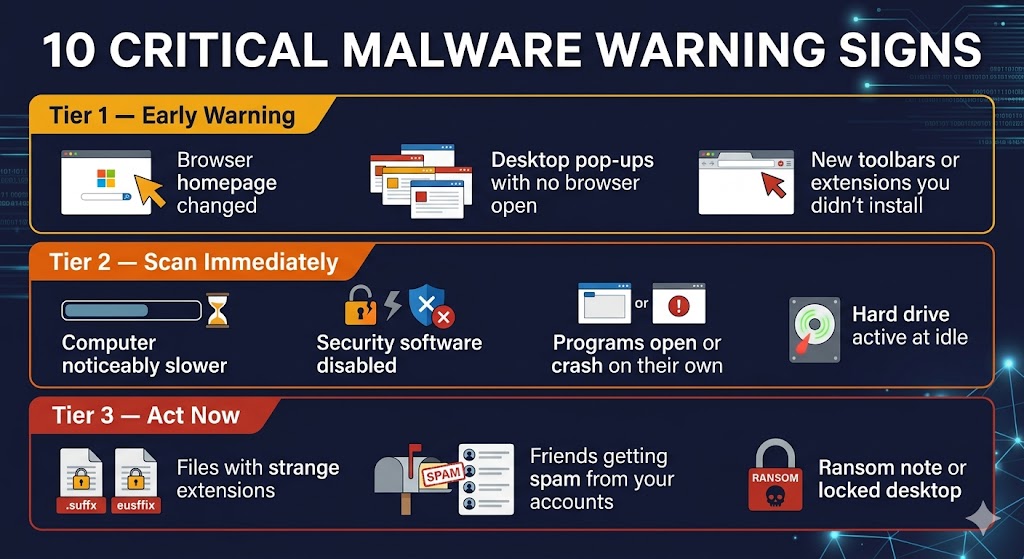
Your computer uses slowdowns, browser oddities, and unexpected program behavior to signal that something is wrong — but many of these symptoms also appear on perfectly healthy machines with old hardware or too many startup apps. That overlap is exactly why so many home users second-guess themselves when malware strikes.
This guide cuts through that confusion. The 10 signs below are grouped into three severity tiers — from mild early annoyances to active emergencies — so you know not just what to look for, but how urgently to act when you find it.
Table of Contents
How to Use This List
The 10 signs below fall into three tiers. Tier 1 (Signs 1–3) covers early annoyances — likely adware or a Potentially Unwanted Program (PUP). Tier 2 (Signs 4–7) signals a more serious infection requiring a full scan within the hour. Tier 3 (Signs 8–10) is an active emergency demanding action before you even open your security software.
Spot signs from multiple tiers at the same time, and treat the situation as the highest tier present.
Early Warning Signs (Tier 1 — Likely Adware or PUP)
Tier 1 signs rarely indicate a serious infection, but they confirm that something unauthorized has been installed on your machine. A full scan resolves most Tier 1 infections without data loss or major disruption.
Sign 1 — Your Browser Homepage Changed Without Your Permission
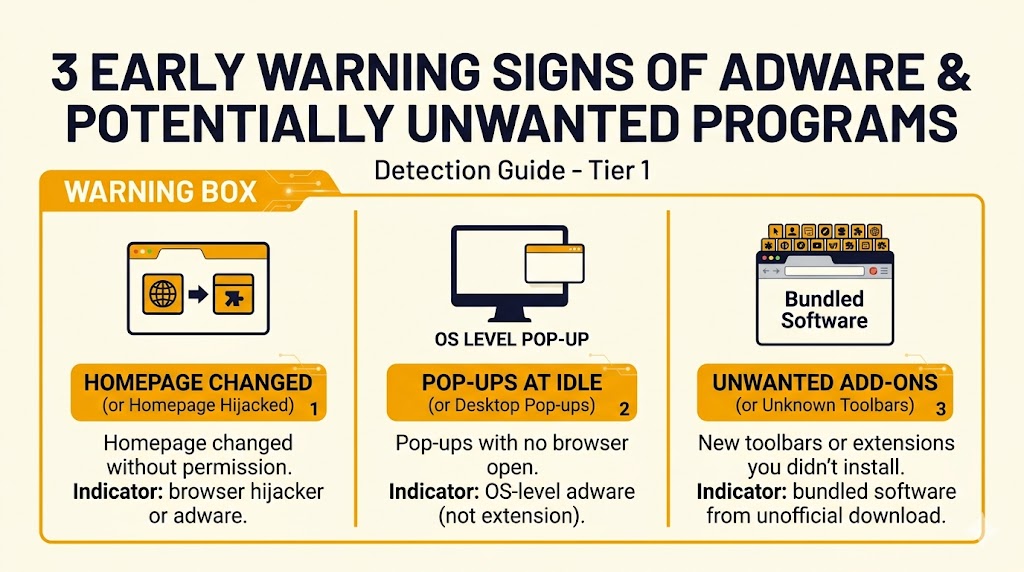
Your computer likely has a browser hijacker or adware installed when the browser opens to a homepage you never set or redirects searches through an unfamiliar engine. These are low-level threats that track your browsing habits and push ads. Run a full antivirus scan and check your browser’s extension list for anything you did not install.
Browser hijackers change your homepage and default search engine without permission and are among the most common early signs of adware on Windows computers. They typically arrive bundled with free software downloaded from unofficial sites — a full scan and a review of your installed programs usually clears them.
Sign 2 — You See Pop-Ups Even When No Browser Is Open
Pop-up ads that appear on your desktop with no browser running are a clear indicator of adware installed at the operating-system level, not just inside a browser extension. Legitimate websites can send browser notifications, but those stop the moment you close the browser. Desktop pop-ups that persist past browser closure are a different and more serious category.
Look for alerts appearing in the bottom-right corner of your screen advertising products, lottery wins, or security warnings you did not request.
Sign 3 — New Toolbars or Extensions You Did Not Install
Check your browser’s extension manager. Toolbars, shopping helpers, or search add-ons you did not install got there through bundled software — typically a free download that included hidden extras buried in the installation agreement. These extensions collect browsing data and may redirect your searches to affiliate or malicious pages.
Open Chrome or Edge, go to Settings → Extensions, and remove anything unfamiliar. If any of these three Tier 1 signs appear together, treat it as a stronger adware signal — the image below summarizes all three — and move directly to a full scan before the infection progresses to Tier 2 behavior.
Serious Infection Signs (Tier 2 — Scan Immediately)
Tier 2 signs indicate a meaningful infection that is actively affecting your system. Run a full scan as soon as you notice any of the following. Do not wait.
Sign 4 — Your Computer Is Noticeably Slower Than Usual
Malware can hijack your CPU and RAM to run hidden processes — cryptomining and botnet activity are common culprits. But aging hardware and too many startup programs cause identical symptoms. Open Task Manager (Ctrl+Shift+Esc) and sort by the CPU column. Look for unfamiliar processes consuming more than 30% with no program open to explain it.
Cryptomining malware keeps CPU usage abnormally high even when the machine is idle, making an otherwise fast computer feel years older within hours of infection. Search any unfamiliar process name before deleting it; some legitimate Windows services look suspicious to non-technical users.
Sign 5 — Your Security Software Has Been Disabled
When Windows Defender or your installed antivirus turns itself off and will not turn back on, malware may have deliberately disabled it to avoid detection — treat this as a confirmed infection until proven otherwise. Disabling security software is among the first actions many malware strains execute after installation, because it reduces the likelihood of automatic removal before the attacker’s payload runs.
Check Windows Security (Start → Windows Security → Virus and Threat Protection). Boot into Safe Mode or use a rescue disk to scan outside the infected environment when the toggle is grayed out and cannot be re-enabled.
Sign 6 — Programs Open, Crash, or Install on Their Own
Remote Access Trojans (RATs) and dropper malware can open applications, install new software, and trigger crashes on command — all invisibly, from a remote attacker. A one-time crash is normal on any Windows machine. A recurring pattern of programs launching at startup that you did not configure, or new desktop icons appearing overnight, is not.
Check your installed programs list (Settings → Apps → Installed Apps) and your startup items (Task Manager → Startup tab) for anything unfamiliar added in the past week.
Sign 7 — Your Hard Drive or Network Is Active When You Are Doing Nothing
Unexplained hard drive or network activity while your computer is idle — with no Windows Update or cloud sync running — is one of the strongest behavioral signals of a background malware process. Ransomware quietly encrypts files before announcing itself. Infostealers upload captured passwords and financial data silently over days or weeks.
Open Task Manager’s Network tab at idle. Check Windows Update and your cloud backup app first when you see consistent upload traffic with no cloud app or browser open. Treat this as a Tier 2 sign and run a full scan immediately when neither explains the activity. Unexplained idle network activity — after ruling out Windows Update and cloud sync — is one of the four strongest Tier 2 signals that background malware is actively running.
Critical Emergency Signs (Tier 3 — Act Now)
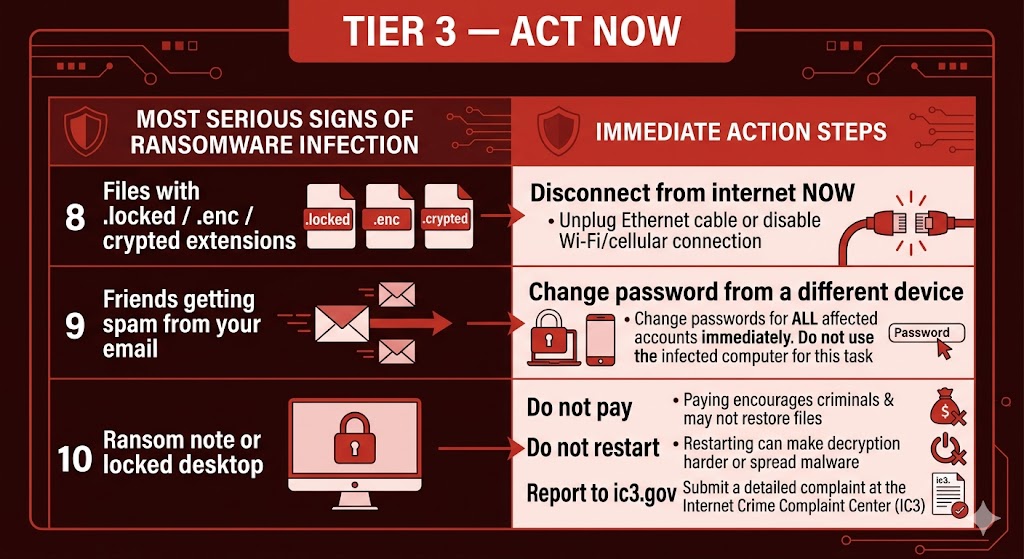
Tier 3 signs mean an active, severe infection is already in progress. Disconnect from your Wi-Fi or unplug your ethernet cable before running any scan. Do not restart your computer first — some ransomware encrypts additional files during reboot.
Sign 8 — Your Files Have Strange Extensions or You Cannot Open Them
Your documents, photos, and videos showing unfamiliar extensions and refusing to open is the clearest visible sign that ransomware has begun encrypting your files — disconnect from the internet immediately. Extensions such as .locked, .enc, .crypted, or a random alphanumeric string replacing .docx or .jpg confirm active encryption is underway.
Disconnecting stops the ransomware from encrypting additional files and cuts off communication with the attacker’s command server. Do not open other files. Do not attempt to pay yet. Seek professional help or a verified ransomware response guide before taking any further action on the infected machine.
Sign 9 — Friends Are Getting Spam from Your Email or Social Accounts
Your account credentials may have been stolen by an infostealer when friends report receiving spam from your email address — change your password immediately from a different, trusted device. This sign can indicate either a device-level infection or a compromised cloud account with no PC malware involved at all.
Check your account’s login history before assuming your computer is the source. Gmail, Outlook, and most social platforms show recent login locations and device types under Security Settings. Change the password from a clean phone or another computer first, then scan the potentially infected machine.
Sign 10 — You See a Ransom Note or Are Locked Out of Your Desktop
A ransom note on your screen or inability to reach your desktop confirms a ransomware infection at its most severe stage. Do not pay the ransom. Payment does not guarantee decryption, and it does not prevent attackers from selling your data or targeting you again. Do not restart the computer before consulting a professional.
Disconnect from the internet, photograph the ransom note screen for documentation, and report the incident to the FBI’s Internet Crime Complaint Center at ic3.gov. Local IT professionals and cybersecurity firms can assess whether decryption tools exist for the specific ransomware variant affecting your machine.
Seeing any of the three Tier 3 signs — encrypted files, outgoing spam, or a ransom lockout, summarized in the image below — makes disconnecting from the internet the only correct first move, before opening antivirus software, before restarting, and before attempting any file recovery.
Can My Computer Have Malware with No Symptoms?
Yes. Infostealers, keyloggers, and Remote Access Trojans (RATs) are designed to run silently and avoid detection. They steal passwords, financial credentials, and personal data without slowing your computer or producing pop-ups. Run a full antivirus scan at least once a month, even if your computer feels completely normal.
Infostealers and keyloggers are engineered to stay invisible — they can steal your banking credentials and Social Security number without triggering a single visible symptom. Some remain dormant on a device for weeks before activating. Others are only discovered during forensic investigations after a financial account is drained or a tax return is filed fraudulently.
Real-time antivirus protection is the most reliable defense against infections that produce no observable signs. To understand how detection engines catch threats that show no symptoms, see How Antivirus Software Works, and for more on whether you need dedicated antivirus software in 2026, see Do You Need Antivirus in 2026?.
Is It Malware or Just a Slow, Aging PC?
A slow computer is the most common symptom attributed to malware, and the most frequently misdiagnosed. Before assuming infection, run three quick checks that take under five minutes total:
Open Task Manager (Ctrl+Shift+Esc). Click “More details” and sort by the CPU column. Any unfamiliar process consuming more than 30% CPU with no open application to explain it warrants investigation. Search the process name before removing anything.
Check your Startup apps (Task Manager → Startup tab). Right-click and disable anything you do not recognize. Too many startup programs alone can slow a machine to a near-halt without any malware involved.
Check Windows Update (Start → Settings → Windows Update). A large pending update running in the background produces disk and CPU spikes indistinguishable from malware behavior until the update finishes.
Three quick checks — Task Manager, Startup apps, and Windows Update status, summarized in the checklist below — can rule out common non-malware causes of a slow PC in under five minutes. Run a full antivirus scan as the next step when all three checks are clear and your machine is still sluggish.
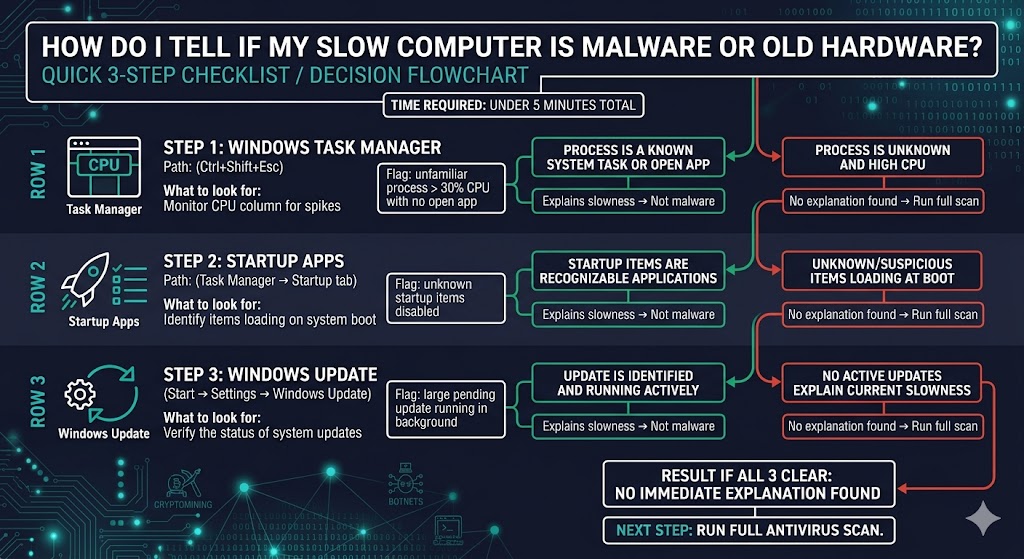
A clean result on all three checks points to malware as the most likely remaining cause of the slowdown — and makes running a full scan the immediate next step.
What to Do If You See These Signs
The correct response depends on which tier of signs you are seeing. Follow the steps below in order.
- Do not panic. A single Tier 1 or Tier 2 sign does not confirm a catastrophic infection. Assess which tier applies before taking action.
- Disconnect from the internet immediately when you see any Tier 3 sign — encrypted files, outgoing spam from your accounts, or a ransom note. Unplug your ethernet cable or disable Wi-Fi before opening any other applications.
- Run a full scan — not a quick scan — with your installed antivirus software. Running a full antivirus scan, not a quick scan, is the single most important first step after spotting signs of malware on a Windows PC. Quick scans check only common infection locations; full scans examine every file on your drive.
- Run a second-opinion scan with a reputable on-demand scanner for confirmation. Malwarebytes Free is designed for this purpose — use it alongside your main antivirus, not as a replacement.
- Change passwords for email, banking, and social accounts — but do it from a different, trusted device, not the potentially infected machine.
- Seek professional help when scans find nothing but symptoms persist, when files are encrypted, or when you are locked out of your desktop. A professional can advise whether a full wipe and reinstall is necessary or whether targeted removal is sufficient.
For complete removal instructions after a confirmed infection, follow our How to Remove Malware from Your Computer guide.
Do Pop-Ups Always Mean My Computer Is Infected?
No. Not every pop-up indicates malware. Many websites request permission to send browser notifications, and approving those requests creates legitimate desktop alerts. Windows itself generates system notifications for updates, low battery, and security recommendations.
Treat pop-ups as a malware sign when:
- They appear on your desktop with no browser open at all.
- They appear constantly during normal browsing and cannot be dismissed without clicking.
- They ask you to install software, call a phone number, or enter personal information.
The first scenario — desktop pop-ups with no browser running — is the clearest indicator of adware operating at the system level, not a browser extension or a website notification.
The Bottom Line on Signs of Malware Infection
Ten warning signs confirm a malware infection may be in progress, but the urgency of your response depends entirely on which tier of signs you see. A new browser toolbar warrants a scheduled scan. Encrypted files and a ransom note warrant disconnecting from the internet before doing anything else.
The most dangerous infections, including infostealers and keyloggers, show none of these visible signs at all. They steal banking credentials, passwords, and Social Security numbers silently, which is why running a full antivirus scan at least once a month matters even when your PC feels completely normal. For a full breakdown of adware, browser hijackers, ransomware, and every other threat class covered above, see our Types of Malware guide.
Run a full scan today with your installed antivirus and follow up with a second-opinion on-demand scan when you spot Tier 1 or Tier 2 signs. Disconnect from the internet immediately when you see Tier 3 signs, then follow our How to Remove Malware from Your Computer guide for next steps. Our Best Antivirus Software 2026 guide compares all six major brands by independent lab score, pricing, and use case — a useful starting point for any household not yet running dedicated antivirus protection.