
Yes, antivirus software can slow down your computer — but in most cases, five settings changes fix the problem without uninstalling anything. The main culprit is scheduled full scans running during the day. Rescheduling scans, enabling silent mode, and removing unused bundled extras restores most of the lost speed in under 30 minutes.
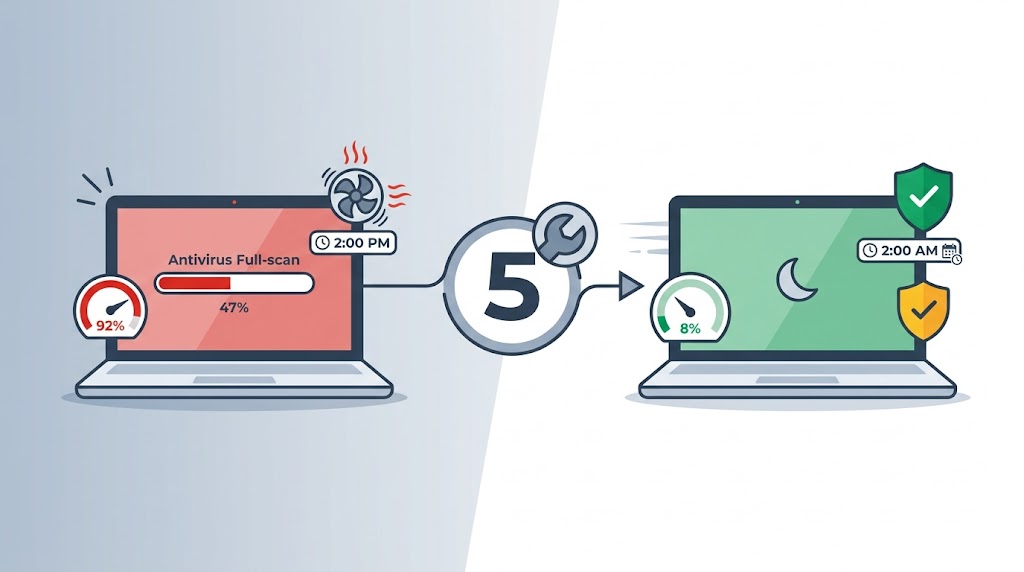
Your antivirus software is supposed to protect your PC, not punish it. If your computer slows to a crawl, the fan spins at full speed, or programs take twice as long to open, your antivirus is a likely — and fixable — cause. Most users assume they need to uninstall and start over. They don’t.
This guide walks you through five specific fixes, in order of impact, for Windows 11 users. By the end, you’ll know exactly which setting to change first — and when the problem is the product itself, not your settings.
Table of Contents
Yes, Antivirus Can Slow Down Your Computer — Here’s Why
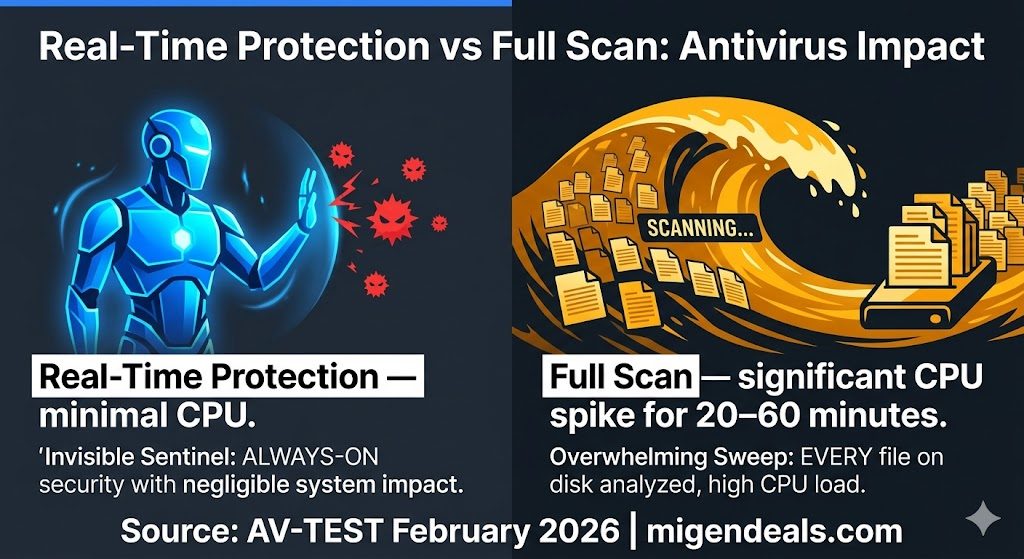
Antivirus software slows computers in two distinct ways: real-time protection that runs constantly but uses minimal CPU in the background, and periodic full scans that can spike CPU usage significantly for 20–60 minutes during the scan. Most users feel the full scan impact and mistake it for constant slowdown. Rescheduling full scans to run overnight eliminates most of the problem.
Norton 360, Bitdefender Total Security, and McAfee each earned a 6/6 Performance score in AV-TEST’s February 2026 evaluation, confirming minimal real-time protection overhead on Windows 11. ESET Security Ultimate scored 5.5/6 — the only tested brand to fall short of a perfect Performance score.
Real-Time Protection vs. Full Scans: The Key Difference
Real-time protection monitors files as they open or execute — it uses minimal CPU in the background and is nearly invisible on modern hardware. A full scan reads every file on your hard drive from start to finish. On a 500 GB drive with hundreds of thousands of files, that process takes 20–60 minutes and demands sustained high CPU and disk usage. The fix is when it runs, not whether it runs.
Bundled Extras Are a Hidden Performance Drain
Most mid-tier and premium antivirus suites ship with features beyond core malware scanning. Three are common sources of hidden load:
- VPN client: Launches at startup and adds measurable seconds to boot time, while running background encryption even when you’re not actively using it
- Browser security extension: Intercepts and scans every URL you load — noticeable on slower connections or older hardware
- Password manager browser add-on: Injects scripts into every webpage, adding measurable page-load latency per tab
Step 1 — Confirm Your Antivirus Is Actually the Problem
Before changing any settings, verify that your antivirus — not another background program — is causing the slowdown. Windows 11 Task Manager gives you a clear answer in under two minutes.
In Windows 11 Task Manager, sort by the CPU column to identify the antivirus process. Sustained usage above 50% for more than 10 minutes during normal use signals a scheduling or configuration problem, not a hardware failure.
How to Check CPU and RAM Usage in Task Manager
- Press Ctrl + Shift + Esc to open Task Manager
- Click the CPU column header to sort processes by highest usage (descending)
- Wait 60 seconds and watch for any process consistently above 50%
- Note the exact process name — use the list below to identify the source
What Processes to Look For by Brand
- Norton: NortonSecurity.exe — or look for any process containing “Norton” in the name, as process names vary by version
- Bitdefender: bdservicehost.exe, bdagent.exe
- McAfee: mcshield.exe, McUICnt.exe
- ESET: ekrn.exe, egui.exe
- Windows Defender (built-in): MsMpEng.exe (Antimalware Service Executable)
You’ve confirmed the source if one of those processes appears at the top of your CPU list during a slowdown. Move to Fix #1.
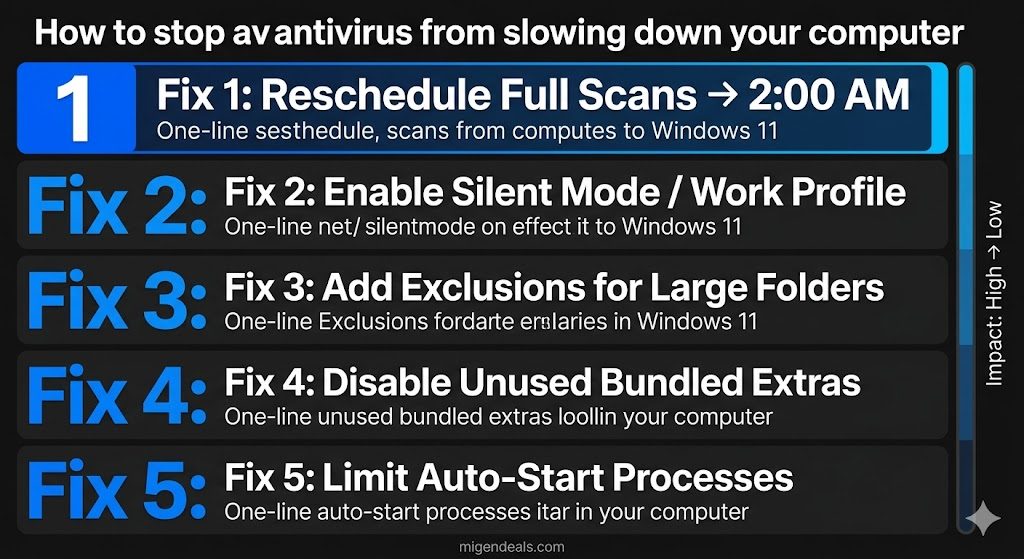
Fix #1 — Reschedule Your Full Scans to Off-Hours
Rescheduling a full antivirus scan from midday to 2:00 AM eliminates the most common cause of daytime performance slowdowns on Windows 11 without changing any protection settings. Your PC runs the scan while you sleep. You wake up to full speed and full protection.
Most antivirus programs default to a scan schedule set at installation time — often mid-morning or whenever you first ran setup. That timing collides directly with normal computer use.
One note: your PC must be on (or set to wake from sleep) for the scheduled scan to run. In Windows 11, go to Settings → System → Power & Sleep and set your PC to stay awake during the scheduled scan window.
How to Find the Scan Schedule Setting in Your Antivirus
Every major antivirus — Norton, Bitdefender, McAfee+, and ESET — includes a scan scheduling feature, though the exact menu location varies by product version and may change with updates.
Open your antivirus main dashboard and look for a section labeled Scans, Scheduled Scans, or Scan Tasks. Use the app’s built-in help if you cannot locate it — type “schedule scan” and every major product surfaces this setting within two clicks of the main dashboard.
For the most current, version-specific instructions, use your antivirus brand’s official support page — these are always updated to match the current app version:
- Norton: support.norton.com
- Bitdefender: bitdefender.com/consumer/support
- McAfee+: mcafee.com/support
- ESET: support.eset.com
Fix #2 — Enable Silent Mode to Reduce Interruptions
Bitdefender’s Work Profile and Norton’s Silent Mode defer non-critical scans and suppress notifications during active use without reducing real-time malware detection. This fix is essential if your PC slows during video calls, streaming, or document-heavy work sessions — even when no full scan is scheduled.
Silent Mode does not reduce protection. It postpones non-urgent tasks (definition updates, scheduled scans, notification pop-ups) until you return to normal use. Real-time detection stays fully active throughout.
Where to Find This Setting in Major Antivirus Programs
- Norton: Open Norton → Settings → General → Silent Mode → Toggle On
- Bitdefender: Open Bitdefender → Utilities → Profiles → Activate Work Profile
- ESET: Open ESET → Setup → User Interface → Presentation Mode → Toggle Enable
- McAfee: Open McAfee → General Settings → Notifications → reduce alert frequency while working
Fix #3 — Add Scan Exclusions for Trusted Folders
Adding your Videos, Music, and large document folders as scan exclusions reduces full-scan duration on most systems without exposing executable files to unscanned risk. Exclusions tell your antivirus to skip specific folders during scheduled scans — those folders still receive real-time protection whenever files are opened or executed.
A Videos library of 100 GB or more represents a significant share of any drive — excluding it from scheduled scans removes a major block of scan work without touching files that pose real executable risk. Important: never add your Downloads folder, Desktop, or any folder containing .exe files from unknown sources as an exclusion. Those locations are exactly where malware arrives.
Which Folders Are Safe to Exclude
- C:\Users[YourName]\Videos — large media files, no executable risk
- C:\Users[YourName]\Music — typically several gigabytes, same low-risk rationale
- C:\Users[YourName]\Pictures — photo libraries with no executable content
- Never exclude: Downloads, Desktop, AppData, Temp, or any folder with unknown .exe files
How to Add Exclusions Step by Step
- Open your antivirus dashboard
- Navigate to Settings → Exceptions (some brands label this Exclusions or Trusted Zones)
- Click Add → Browse to the folder you want to exclude
- Confirm — the folder is skipped on future scans but still protected in real time
Fix #4 — Disable Unused Bundled Extras
Modern antivirus suites ship with more than malware scanning. Norton, Bitdefender, and McAfee include VPN clients, browser extensions, and password manager add-ons in their mid-tier and premium plans. ESET includes a VPN (Premium and Ultimate plans) and a browser security extension, but does not include a password manager in any plan. Those extras are useful — if you use them. Disabling a browser extension or stopping a VPN client from auto-launching does not affect real-time malware detection, scheduled scans, or ransomware protection.
Browser Extensions, VPN Clients, and Password Manager Add-Ons
Three bundled extras cause the most measurable performance drag:
- Browser security extension: Intercepts every URL your browser loads and checks it against a threat database. Disable it in your browser’s extension settings if you already use a standalone ad-blocker with web protection.
- VPN client auto-launch: Starts with Windows and maintains an idle connection even when unused. Disable auto-launch in the VPN settings inside your antivirus dashboard — launch it manually when needed.
- Password manager browser add-on: Injects scripts into every webpage you visit. Remove it from your browser extensions if you use a dedicated password manager such as 1Password or Bitwarden.
What You Can Turn Off Without Losing Core Protection
Core protection consists of two components: real-time scanning and automatic definition updates. Every other feature in your antivirus suite is optional. Disable one extra at a time and monitor your PC’s performance for 24 hours before disabling the next.
Fix #5 — Limit Auto-Start Processes
Every antivirus program adds entries to Windows startup. Some entries are essential — the core protection engine must load when Windows starts. Others are UI tray icons, notification daemons, and VPN launchers that can load after login without affecting protection.
Limiting high-impact startup items cuts boot time and reduces the RAM your antivirus claims before you open a single application.
How to Use Task Manager’s Startup Tab
- Press Ctrl + Shift + Esc to open Task Manager
- Click the Startup Apps tab (top navigation bar)
- Sort by Startup impact — click the column header to sort High → Low
- Right-click any high-impact antivirus UI process → select Disable
- Do not disable any item described as a “service” or “engine” — only tray icons and launcher utilities
- Restart your PC and check boot time improvement
Which Antivirus Startup Items Are Safe to Delay
✅ Safe to disable or delay: tray notification icon, browser extension launcher, VPN client UI, cloud backup scheduler
❌ Do NOT disable: core antivirus engine service (ekrn.exe, bdservicehost.exe, NortonSecurity.exe), real-time protection daemon, automatic update service
Disabling the core engine from startup leaves your PC unprotected until you manually launch the antivirus — that trade-off is not worth the boot time saving.
When These Fixes Don’t Work — Signs It’s Time to Switch
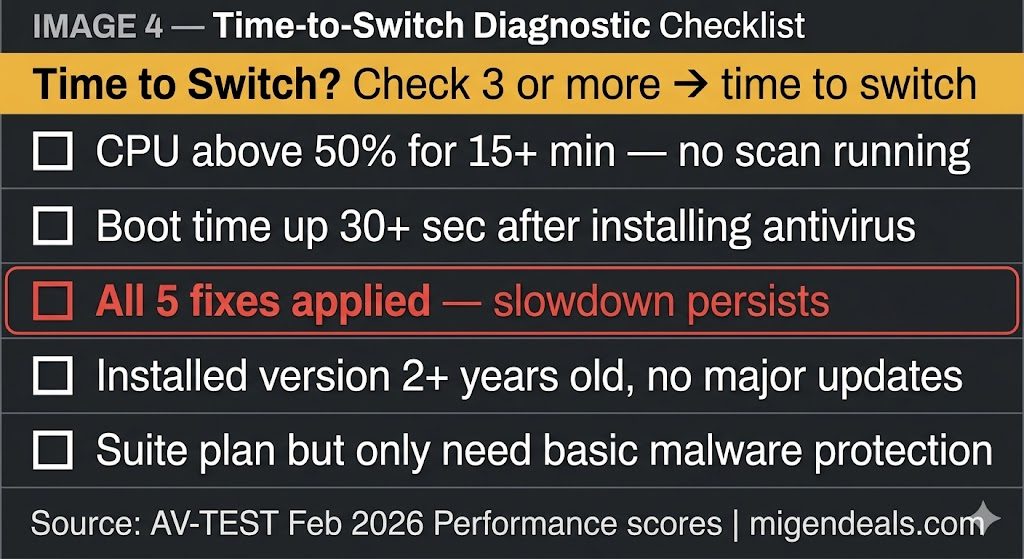
Five fixes cover the majority of antivirus slowdown cases. Switching products is the right move after you’ve applied all five fixes — if slowdown persists across all of them, the issue is the product, not your configuration. Use this five-point checklist to decide:
- CPU stays above 50% for more than 15 minutes during normal use — no scan running
- Boot time increased by more than 30 seconds after installing your current antivirus
- All 5 fixes applied — slowdown persists
- Your installed version is more than 2 years old and hasn’t been updated beyond definition files
- You’re paying for a suite-level plan but only need basic malware and real-time protection
ESET Security Ultimate earned a 5.5/6 Performance score in AV-TEST’s February 2026 evaluation — the only brand among the four tested to fall short of a perfect score, indicating slightly higher system impact than Norton, Bitdefender, and McAfee, which each scored 6/6. See the full AV-TEST Performance data in our Antivirus Performance Benchmarks guide.
Is It Safe to Disable Antivirus to Speed Up Your PC?
No. Disabling real-time antivirus protection to speed up your PC exposes your system to malware between manual scans — enabling Silent Mode delivers most of the performance benefit without removing protection.
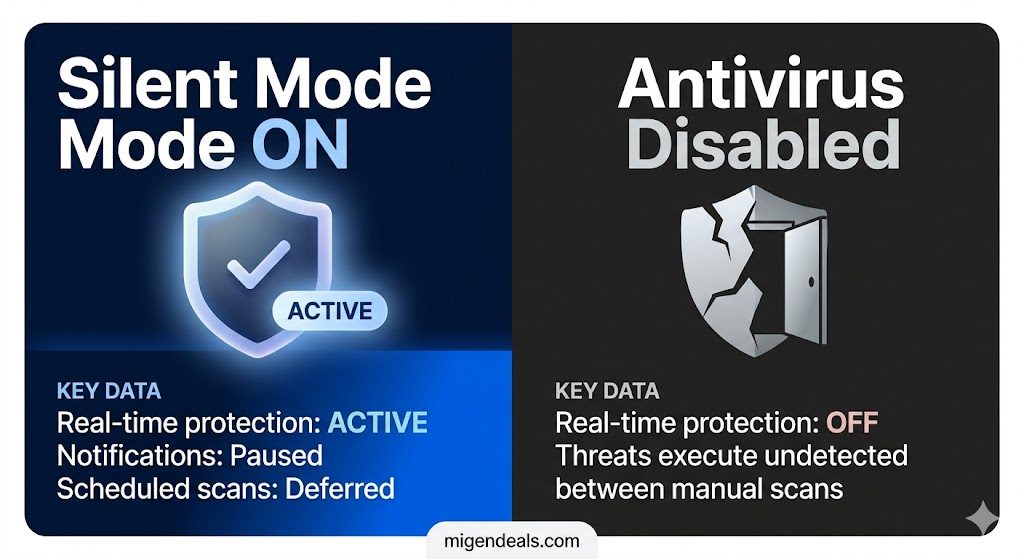
Real-time protection is the layer that blocks threats before they execute. A manual scan only catches threats already on your drive. The window between scans — hours or days — is exactly when drive-by downloads, phishing payloads, and USB-delivered malware do their damage. Enable Silent Mode (Fix #2) instead. You get the quiet, low-interruption experience of a paused antivirus with every protection layer fully active. For a deeper look at how this protection layer works at the technology level, see our Real-Time Malware Protection Explained guide.
Frequently Asked Questions
How do I stop my antivirus from slowing down my computer? Apply fixes in this order: reschedule full scans to 2:00 AM, enable Silent Mode, add exclusions for large media folders, disable unused bundled extras (VPN auto-launch, browser extensions), and limit antivirus tray items in the Windows 11 Startup Apps tab. Most users resolve the problem after Fix #1 alone.
Why is my computer so slow after installing antivirus? A new antivirus installation triggers an initial full scan of your entire hard drive — this is normal and runs once. It can take 30–90 minutes on large drives and temporarily spikes CPU usage significantly. After the first scan completes, performance returns to normal. Reschedule future scans to 2:00 AM to prevent recurring slowdowns.
Can antivirus cause high CPU usage? Yes — during scheduled full scans, antivirus software can spike CPU usage significantly on Windows 11. This is expected behavior, not a malfunction. Sustained high CPU usage outside of scan windows — during normal browsing or document editing — signals a configuration problem. Apply Fix #2 (Silent Mode) and Fix #5 (limit startup processes) to address background CPU load between scans.
The Bottom Line on Antivirus Slowdowns
Antivirus software causes real performance impact — but the source is almost always scheduled full scans, not real-time protection. Rescheduling your full scan to 2:00 AM solves the problem for most users in under five minutes. For persistent slowdowns, enabling Silent Mode, adding folder exclusions, disabling unused bundled extras, and limiting startup items address the remaining causes without touching your protection settings. If the bundled VPN is one of the extras you’re weighing, our VPN in Antivirus — Is It Good Enough? guide covers whether it’s worth keeping.
Norton 360, Bitdefender Total Security, and McAfee each scored a perfect 6/6 on Performance in AV-TEST’s February 2026 evaluation. ESET Security Ultimate scored 5.5/6 — still strong, but with measurably higher system impact than the top three. Apply all five fixes first — switching products is the right move only after all five fail to resolve the slowdown, as the Performance score gap is a meaningful signal for product selection.
Never disable real-time protection to gain speed. Enable Silent Mode instead — you get the same quiet experience with every protection layer intact. If performance is your top buying criterion — especially for gaming or other CPU-heavy use — see our Best Antivirus for Gaming guide for the lightest-impact picks on Windows 11.