
To remove malware from your computer, disconnect from the internet, reboot in Safe Mode, delete temporary files, and run a full scan with Windows Security or a trusted tool like Malwarebytes. Quarantine or delete detected threats, reset your browser settings, fix proxy settings, and change your passwords. For persistent infections, run Windows Defender Offline or reset your PC completely.
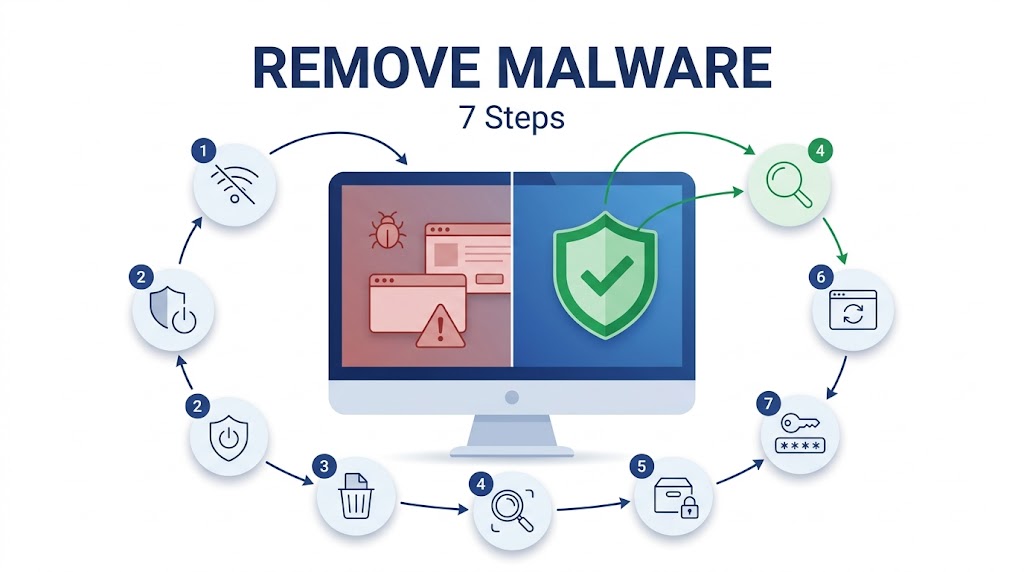
Malware is any malicious software installed on your computer without your consent — including viruses, spyware, ransomware, and trojans. If your PC is running slow, showing unexpected pop-ups, or behaving strangely, you may already be infected. Most malware infections on home PCs are removable in under an hour using free tools already on your computer.
This guide walks you through 7 steps to remove malware from a Windows PC or Mac, plus escalation steps if the infection is severe. Follow each step in order — skipping steps is the most common reason malware comes back.
Table of Contents
3 Signs You Already Have Malware
If your computer shows any of these three symptoms, malware is the likely cause:
- Unexpected pop-ups or browser redirects. Your browser opens pages you didn’t click, or new tabs appear without warning — a classic sign of adware or a browser hijacker.
- Your computer runs significantly slower than normal. Cryptocurrency miners and spyware run silently in the background, consuming CPU and RAM without your knowledge.
- Programs appear in your Apps list or Task Manager that you did not install. Trojans and droppers frequently install secondary payloads — unfamiliar software is a red flag.
These three signs cover the majority of malware behavior you’ll encounter as a home user. Less obvious symptoms — disabled antivirus, unfamiliar browser toolbars, or unexplained network activity — point to the same conclusion.
Unexpected pop-ups, unexplained slowdowns, and unknown programs in your Apps list are the three most common signs of malware on a Windows PC.
Once you’ve confirmed something is wrong, your first move is not to scan — it’s to protect your files.
Before You Start: Back Up Your Files First
Back up your important files before running any aggressive scans or making system changes.
Antivirus tools occasionally quarantine legitimate files alongside malicious ones. A factory reset — if it comes to that — wipes everything. Take 10 minutes now to protect your data:
- External hard drive: Copy your Documents, Pictures, and Desktop folders to an external drive.
- Windows Backup: Go to Settings → System → Backup → Add a drive and select your external storage.
- Cloud sync: If OneDrive or Google Drive is already running, verify your key folders are synced before proceeding.
Important: Do not overwrite a cloud backup if ransomware has already encrypted your files — you may destroy your last clean copy. In that case, skip directly to What to Do If Antivirus Still Can’t Remove the Malware below.
Backing up your files to an external drive before running aggressive malware scans protects you from accidental data loss during the cleanup process.
With your files safe, the first action is to cut off the malware’s lifeline.
Step 1: Disconnect from the Internet Immediately
Cut your internet connection the moment you suspect an active infection.
Many trojans report stolen passwords and banking credentials to remote servers while your PC stays connected. Disconnecting stops that communication cold and prevents the malware from downloading additional payloads or spreading to other devices on your network.
- Wi-Fi: Click the network icon in your taskbar → click your Wi-Fi network → click Disconnect.
- Ethernet: Physically unplug the cable from your PC or router.
Stay offline until Step 6 is complete. Do not reconnect just to download a scanner — download any tools on a separate device and transfer via USB if needed.
Disconnecting from the internet immediately after discovering malware stops the infection from sending stolen data to remote servers.
Disconnected? Now restart your computer in a special mode that prevents malware from running.
Step 2: Reboot Your PC in Safe Mode
Safe Mode loads only essential Windows or macOS components — most malware cannot run in this environment.
Rebooting in Safe Mode before scanning significantly increases your scan’s effectiveness. Safe Mode loads only Microsoft-signed drivers, which prevents most malware from activating and interfering with the removal process.
How to Boot into Safe Mode on Windows 10 and 11
Safe Mode on Windows follows four steps from the Power menu to a secured startup environment.
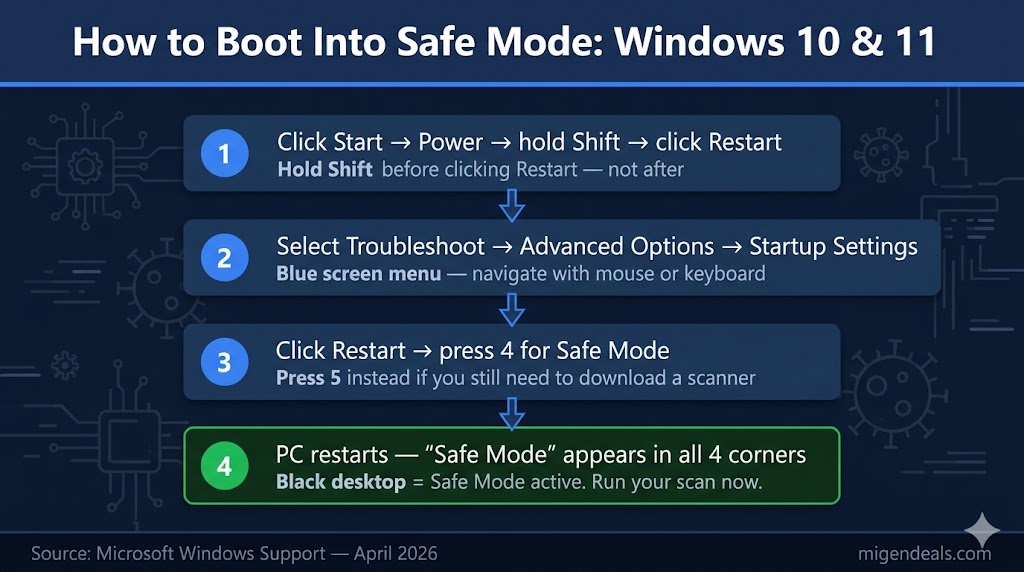
- Click Start → Power → hold the Shift key → click Restart.
- On the blue menu, select Troubleshoot → Advanced Options → Startup Settings → Restart.
- When the Startup Settings screen appears, press 4 for Safe Mode, or 5 for Safe Mode with Networking.
- Your PC restarts with a black desktop and “Safe Mode” displayed in each corner.
Use Safe Mode with Networking (option 5) only if you still need to download your scanner. Otherwise, Safe Mode (option 4) is sufficient.
How to Boot into Safe Mode on Mac
- Shut down your Mac completely.
- Press and hold the Power button until “Loading startup options” appears.
- Select your startup disk.
- Hold the Shift key, then click Continue in Safe Mode.
- Your Mac logs in with “Safe Boot” shown in the menu bar.
Rebooting in Safe Mode prevents malware from loading at startup, making it significantly easier to detect and remove during a scan.
In Safe Mode, run one quick cleanup step before the scan to speed things up.
Step 3: Delete Temporary Files
Delete your temporary files before scanning — it reduces scan time and removes common malware hiding spots.
The Windows %temp% folder is one of the most common places malware drops payloads because it requires no admin privileges to write to. Clearing it before your scan removes low-risk debris and speeds up the process.
Method 1 — Disk Cleanup (easier):
- Press Start → type Disk Cleanup → press Enter.
- Select drive C: → click OK.
- Check Temporary files and Temporary Internet Files → click OK → Delete Files.
Method 2 — Manual (faster):
- Press Windows + R → type
%temp%→ press Enter. - Press Ctrl + A to select all → press Delete.
- Skip any files Windows says are currently in use — that’s normal.
Deleting temporary files before scanning reduces scan time and removes common malware drop zones in the Windows %temp% folder.
Temp files cleared. Now run the actual scan.
Step 4: Run a Malware Scan with a Trusted Tool
Start with the free scanner already installed on your PC — then add a second-opinion tool if needed.
Start with Windows Security (Built-In, Free)
Windows Security uses Microsoft’s cloud-based protection network and updates its definitions multiple times per day, making it effective against the vast majority of known threats.
Running a Windows Security Full Scan takes five steps and catches the majority of malware infections at no cost.
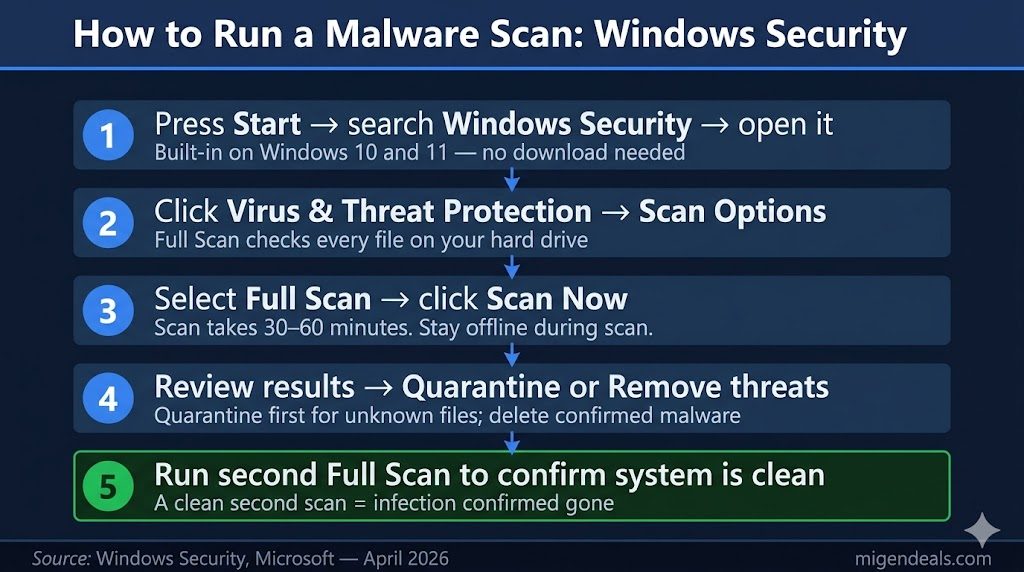
- Press Start → search Windows Security → open it.
- Click Virus & Threat Protection.
- Click Scan Options → select Full Scan → click Scan Now.
- Wait for the scan to complete — a full scan typically takes 30–60 minutes.
- Review the results and follow the prompts to remove or quarantine detected threats.
Windows Security’s Full Scan option checks every file on your hard drive and removes or quarantines detected malware at no cost.
Run a Second-Opinion Scanner for Stubborn Infections
Use a second scanner if:
- Windows Security finds nothing, but your symptoms persist.
- You had high-risk exposure — you clicked a phishing link, downloaded software from an untrusted site, or saw a fake AV alert.
Malwarebytes — named a PCMag Best Tech Brand for 2026 — is a widely trusted second-opinion tool for home users. It specializes in detecting adware, PUPs (potentially unwanted programs), and browser hijackers that standard antivirus tools miss, and its free 14-day trial requires no credit card.
- Download Malwarebytes on a clean device and transfer via USB if you’re staying offline.
- Install → click Get Started → run a Smart Scan.
- Review detections → click Quarantine to isolate threats.
To run a malware scan: open Windows Security, click Virus & Threat Protection, select Full Scan, and click Scan Now. If the scan finds nothing but symptoms persist, run Malwarebytes as a free second-opinion scan — no credit card required.
Your scanner found threats. Here’s exactly how to act on those results.
Step 5: Quarantine or Remove Detected Threats
Quarantine first for unknown files. Delete immediately for confirmed malware.
When your scanner returns results, you have two options:
| Action | When to Use | What It Does |
|---|---|---|
| Quarantine | Unfamiliar file name, unsure if legitimate | Isolates the file — it can’t run, but it’s recoverable if it turns out to be a false positive |
| Delete | Scanner labels it Trojan, Ransomware, Worm, or Spyware with high confidence | Permanently removes the file from your system |
Quarantine keeps a suspicious file inaccessible but recoverable — useful if your scanner flags a legitimate program by mistake (a false positive). Delete only threats your scanner identifies with high confidence.
After removing or quarantining all detected threats, restart your PC in normal mode and run a second full scan to confirm the system is clean. A clean second scan is your confirmation the infection is gone.
Quarantine isolates a suspicious file without deleting it — use this option first for unknown detections, and delete only confirmed threats.
Malware is cleared from your system files — but it may have already hijacked your browser.
Step 6: Clean Your Browser and Fix Proxy Settings
Resetting your browser removes malicious extensions and search engine hijacks that survive even a full antivirus scan.
Browser-based malware runs as a browser extension, not a system-level process. That’s why it survives most full system scans. This step takes less than five minutes and eliminates the most common source of recurring pop-ups and redirects.
How to Reset Your Browser (Chrome, Edge, or Firefox)
First, remove unknown extensions:
- Open your browser → go to Extensions (Chrome: three-dot menu → Extensions → Manage Extensions).
- Remove any extension you do not recognize or did not install yourself.
- Pay close attention to anything labeled “Shopping,” “Search Helper,” “PDF Converter,” or “Speed Booster” — these are common adware disguises.
Then, reset browser settings to default:
- Chrome: Settings → Reset and clean up → Restore settings to their original defaults → Reset settings.
- Edge: Settings → Reset settings → Restore settings to their default values → Reset.
- Firefox: Help → More troubleshooting information → Refresh Firefox → Refresh Firefox.
Resetting removes your search engine hijack, restores your homepage, and clears session data tied to the infection.
How to Check and Fix Proxy Settings on Windows
Many browser hijackers redirect your traffic by modifying Windows proxy settings — a change no browser reset will fix.
- Go to Settings → Network & Internet → Proxy.
- Under Manual proxy setup, confirm “Use a proxy server” is toggled Off. Toggle it off immediately if it is on and you did not set it.
- Right-click your browser’s desktop shortcut → Properties → Shortcut tab → check the Target field. It should end with
.exeand nothing else. Delete everything after.exeif it reads something likechrome.exe --proxy-server=....
Resetting your browser removes malicious extensions and search engine hijacks that survive even a full antivirus scan.
Your PC is clean and your browser is restored. Now protect your accounts.
Step 7: Change Your Passwords After Cleanup
Change your most critical passwords immediately — even after a successful removal.
Info-stealers like RedLine and Raccoon Stealer — both active throughout 2025 — are specifically designed to harvest saved browser passwords and transmit them to attackers before you ever run a scan. By the time you remove the malware, those credentials may already be compromised.
Prioritize these accounts in this order:
- Email account — your email is the master key to every other account via password reset links. Change this first.
- Banking and financial accounts — any account tied to money, credit, or investments.
- Work accounts and social media — accounts tied to your identity or sensitive communications.
For every account, create a unique password you have never used before. Enable two-factor authentication (2FA) on every account that offers it — even if an attacker has your password, 2FA blocks unauthorized access. A password manager generates and stores strong, unique passwords for every account automatically.
Changing your email and banking passwords immediately after malware removal prevents attackers from using credentials stolen before the infection was cleaned.
Steps 1–7 resolve the vast majority of home PC infections. But some malware is too deep to remove this way — here’s what to do when the standard process fails.
What to Do If Antivirus Still Can’t Remove the Malware
If two scanners return clean results but your symptoms persist, the infection is deeper than a standard scan can reach.
Try an Offline Scan First (Windows Defender Offline)
Microsoft Defender Offline Scan runs before Windows loads — which means the malware has no opportunity to activate, hide itself, or block the scan. It is the most effective built-in tool for rootkits and bootkits that evade in-session scans.
- Open Windows Security → Virus & Threat Protection.
- Click Scan Options → select Microsoft Defender Antivirus (Offline scan) → click Scan Now.
- Your PC restarts automatically, scans outside of Windows, then boots back into your desktop with results.
Microsoft Defender Offline Scan runs before Windows loads, making it the most effective built-in tool against rootkits and bootkits that evade standard scans.
Consider a Full Reset of Your PC
If the offline scan also fails to resolve the issue, a full PC reset is your next step.
- Go to Settings → System → Recovery → Reset this PC.
- Choose your option:
- Keep my files — removes all apps and settings, but leaves personal files. Use this for moderate infections.
- Remove everything — full wipe. Reinstalls Windows from scratch. Use this for rootkits, banking trojans, or any infection where you suspect deep system compromise.
- Follow the on-screen prompts to completion.
Important: “Remove everything” is irreversible. Confirm your backup is complete before proceeding. After the reset, scan your backup drive with Windows Security before restoring any files — infected files in your backup can re-introduce malware immediately.
When to Call a Professional
Stop the DIY process and contact a professional cybersecurity technician if:
- Your PC will not boot even in Safe Mode.
- Your scanner identifies a banking trojan, RAT (Remote Access Trojan), or UEFI-level rootkit.
- You have evidence of financial fraud or identity theft connected to the infection.
- You are not comfortable performing a full system wipe and reinstall.
A local IT shop or remote cybersecurity service can perform forensic-level removal that exceeds what home tools can accomplish.
If antivirus cannot remove the malware, run Microsoft Defender Offline Scan from Windows Security — it scans before Windows loads and catches rootkits. If that fails, use Reset This PC with “Remove everything” selected. For rootkits or banking trojans, contact a professional cybersecurity technician.
Even a full reset has limits — here’s what you need to know about the factory reset question most users search for.
Will Resetting My PC Remove All Malware?
Yes — selecting “Remove everything” during a Windows reset eliminates virtually all malware from your PC.
A full wipe reinstalls Windows from scratch, leaving no files, apps, or settings for the malware to hide in — including deep infections that survive standard antivirus scans.
Three important considerations before you reset:
- “Keep my files” resets carry risk. Personal files, scripts, or infected restore points can harbor malware that reactivates after the reset completes. Use “Remove everything” for any infection you consider serious.
- UEFI-level rootkits can theoretically survive a full OS reset by embedding themselves in firmware. These are extremely rare for home users and require specialized firmware-flashing tools — far beyond standard DIY removal.
- Infected backup files can re-introduce malware immediately after a clean reset if you restore without scanning first. Always scan your backup drive with Windows Security before restoring any files.
Selecting “Remove everything” during a Windows PC reset eliminates virtually all malware, including deep infections that survive standard antivirus scans.
Reset is the last resort. Here’s how to avoid ever needing it again.
How to Prevent Malware from Coming Back
Five habits stop most malware infections before they start — and the first three block the three biggest infection entry points for US home users.
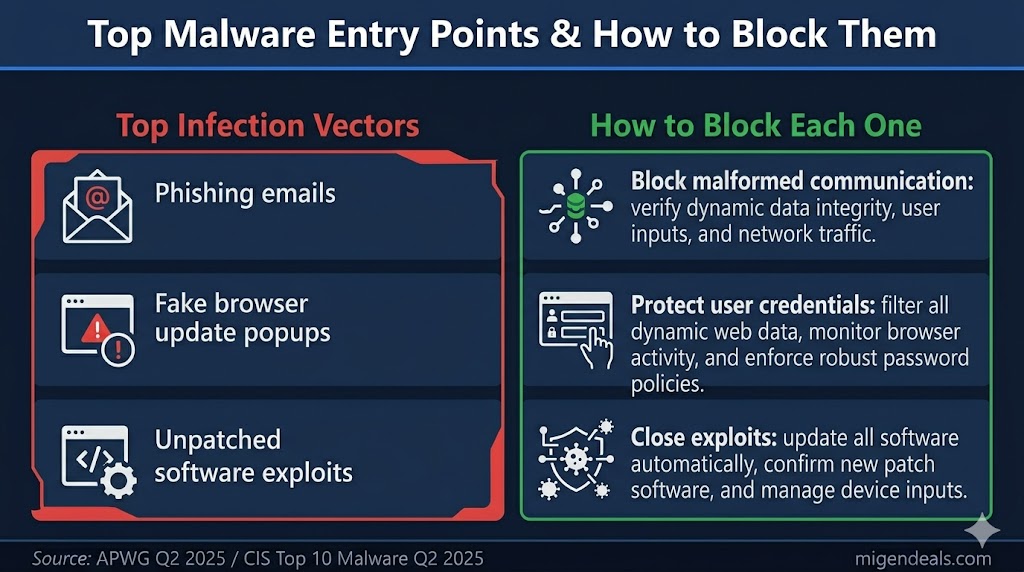
- Keep Windows and all software updated. Most malware exploits known vulnerabilities in unpatched software. Enable automatic updates in Settings → Windows Update.
- Ignore “Update your browser” prompts from websites. SocGholish and similar malware families — listed in the CIS Top 10 Malware Q2 2025 report — disguise themselves as legitimate browser update pages. Your browser updates itself through its own menu, never through a website pop-up.
- Be skeptical of every email attachment and link. Phishing is the top malware delivery method for US home users. APWG recorded over 1.13 million phishing attacks in Q2 2025 alone. When in doubt, do not click.
- Run real-time antivirus protection. Windows Security is the free baseline and handles most common threats. For stronger protection against zero-day threats and PUPs, see our Best Antivirus for Windows guide. For a detailed look at how real-time protection works, see our guide to real-time malware protection explained.
- Back up your files regularly. A recent, clean backup makes any infection fully recoverable — even ransomware. Schedule automatic backups to an external drive or cloud service at least once a week.
Phishing emails remain the top malware delivery method for US home users, with APWG recording over 1.13 million phishing attacks in Q2 2025 alone.
The Bottom Line on Removing Malware from Your Computer
Seven steps remove most malware from a Windows PC or Mac: disconnect from the internet, back up your files, reboot in Safe Mode, delete temporary files, run a full scan, clean your browser, and change your passwords. Windows Security handles the majority of infections for free, while Malwarebytes — named a PCMag Best Tech Brand for 2026 — serves as the go-to second-opinion scanner with a free 14-day trial. Mild adware clears up in under an hour; rootkits and banking trojans require Windows Defender Offline or a full PC reset with “Remove everything” selected. Always scan your backup drive before restoring files after a reset — infected backups re-introduce malware immediately. Phishing emails drove over 1.13 million attacks in Q2 2025, making email skepticism and software updates your two most important defenses. For a full breakdown of Malwarebytes’ detection and removal capabilities, see our Malwarebytes review, and for the current pricing and promotions on its paid plans, check the latest Malwarebytes deal and discount. For ongoing real-time protection across all your devices, see our Best Antivirus for Windows guide.